How to download Uncensored AI to your phone
Uncensored AI is available on the web, iOS, and Android. Follow these simple steps to install it on your Android home screen for one-tap access.
1 Open the site in Chrome
On your Android device, launch Google Chrome and navigate touncensored.com/ai
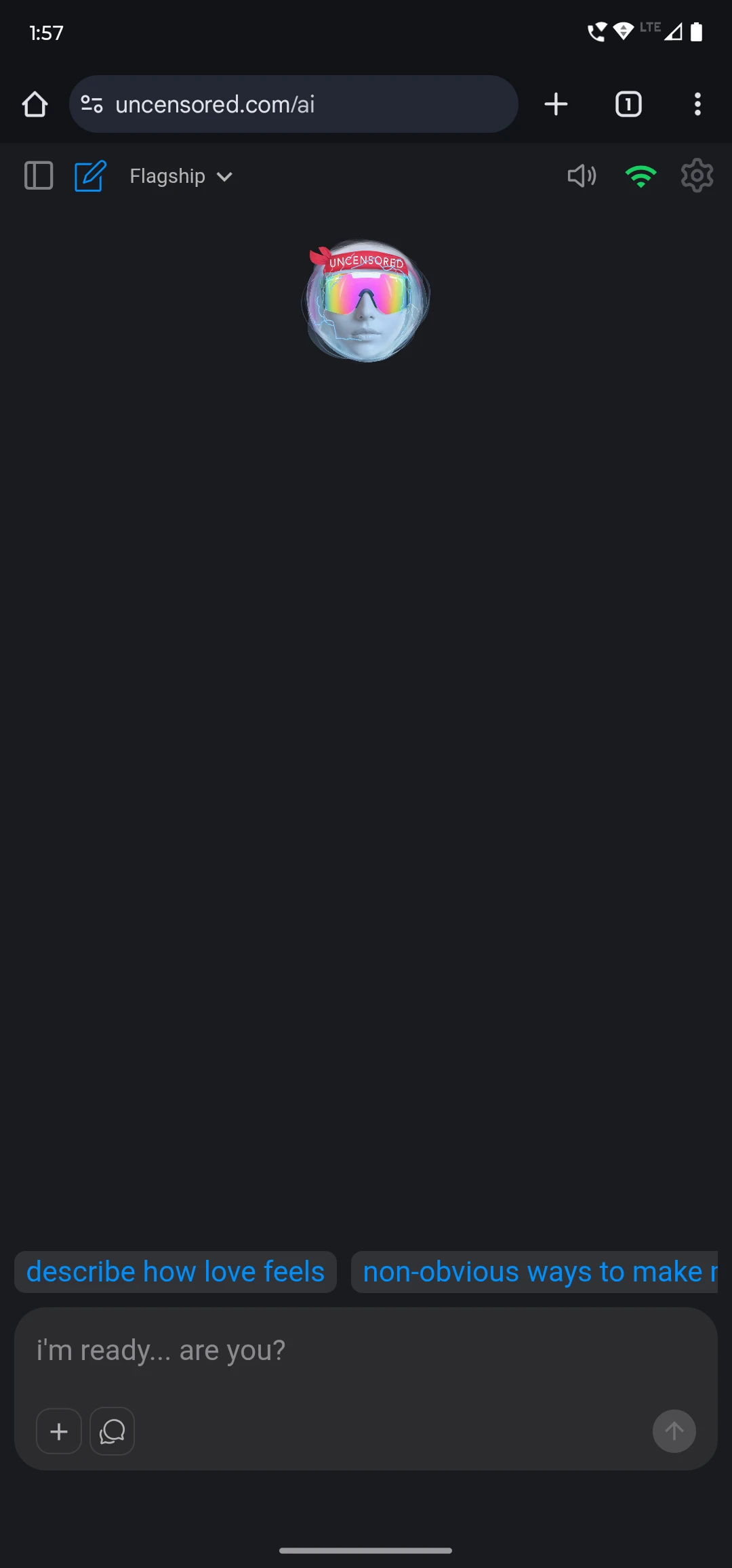
Uncensored AI running inside the Chrome browser. 2 Tap the ⋮ (More) menu
In the top-right corner of Chrome, tap the three-dot menu to reveal additional options.
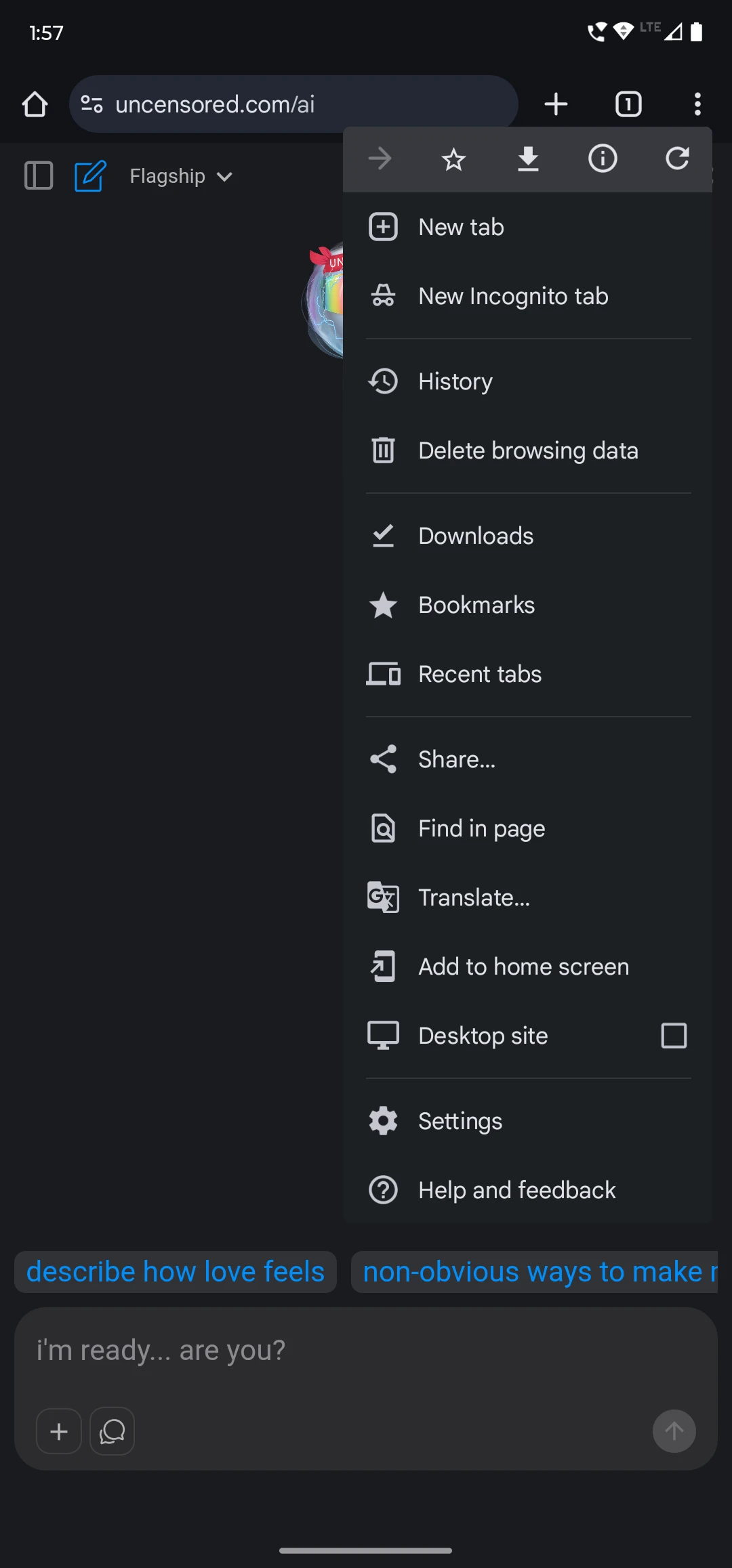
The overflow menu shows "Add to home screen". 3 Choose "Add to Home screen"
Select _Add to home screen_. A confirmation sheet will slide up from the bottom—tap **Install** for the full-screen PWA.
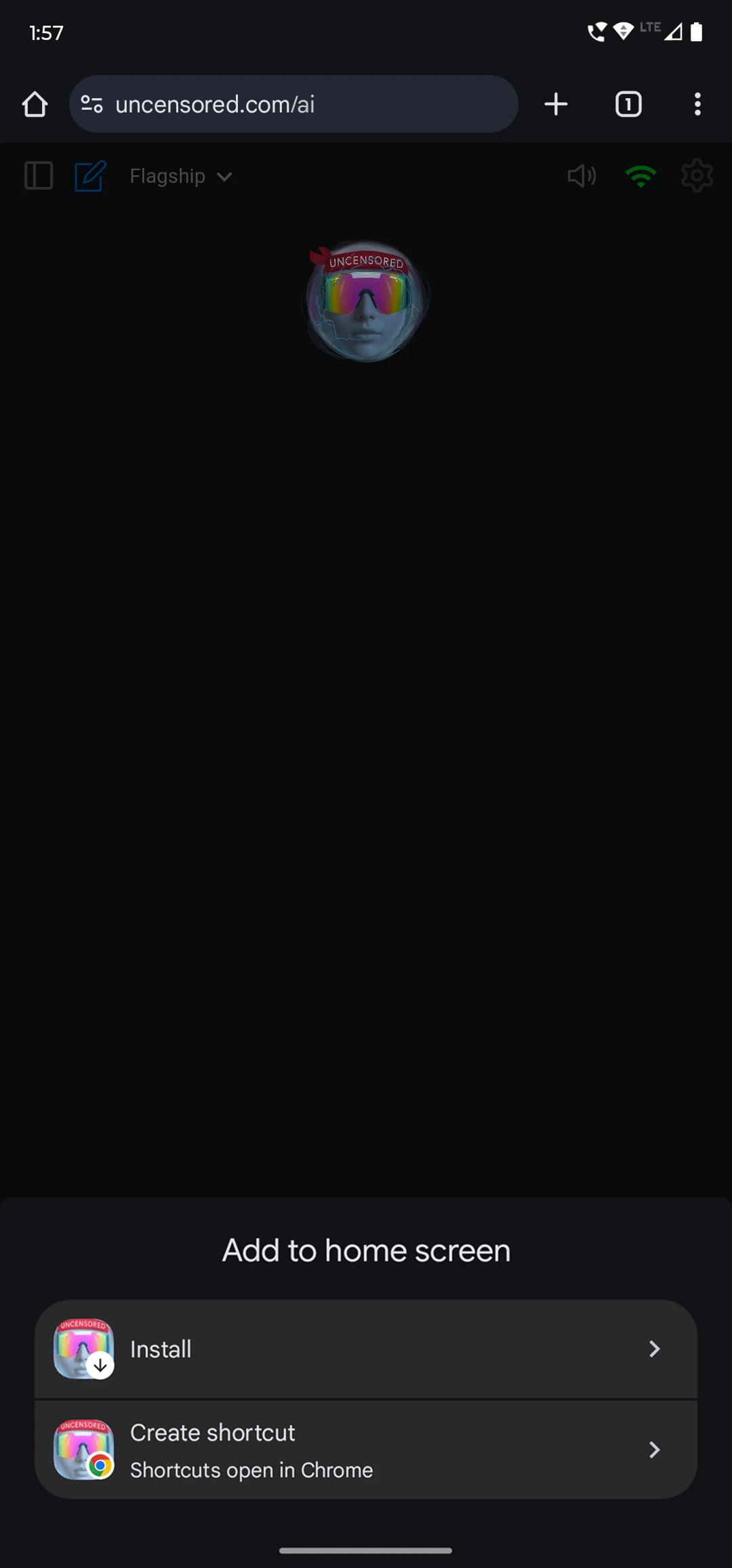
Bottom sheet with Install and Create shortcut buttons. 4 Chrome installs the app
Chrome packages Uncensored AI as a Progressive Web App (PWA). You'll briefly see an "Installing…" notification.
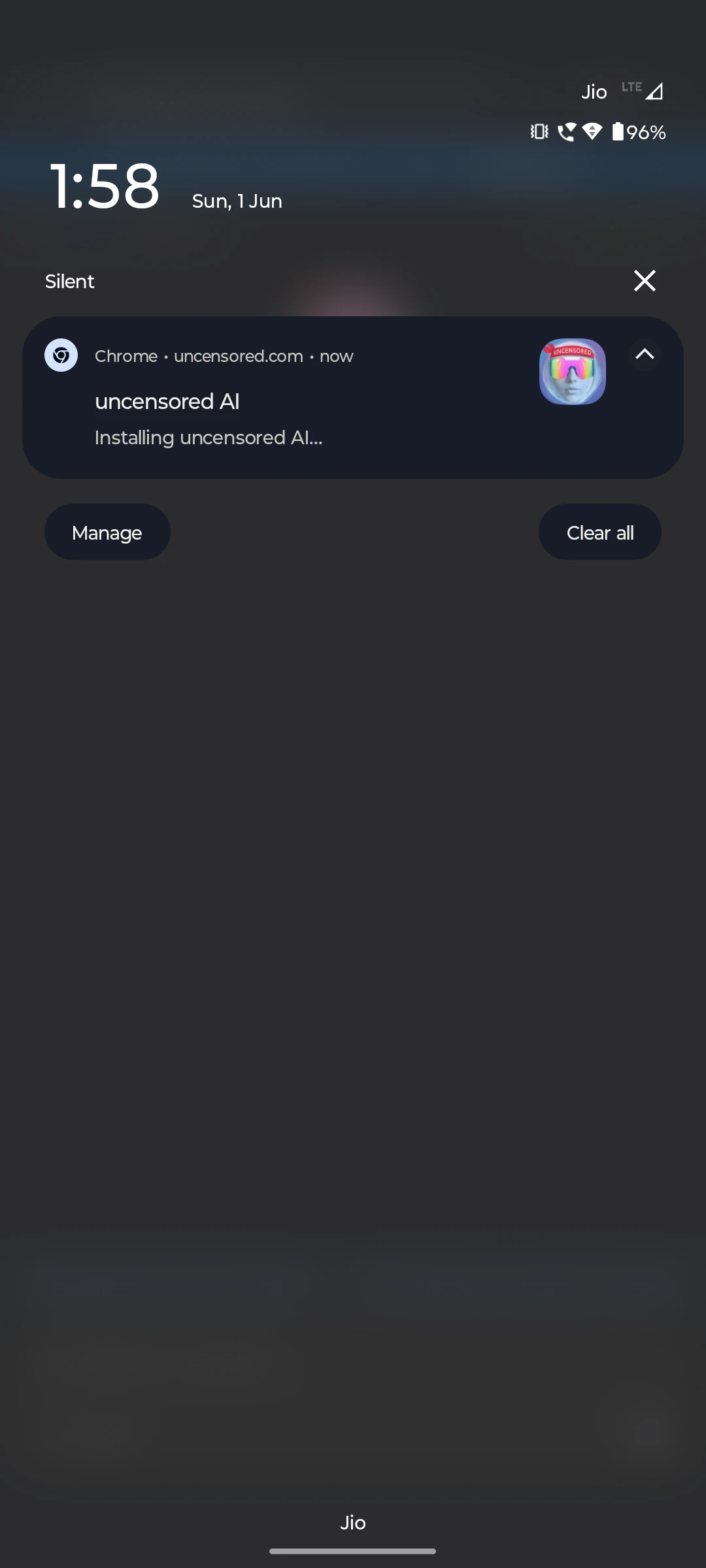
Android handles the install in the background. 5 Success! "App installed" toast
When the install completes you'll receive a confirmation notification—that means the icon has been added to your launcher.
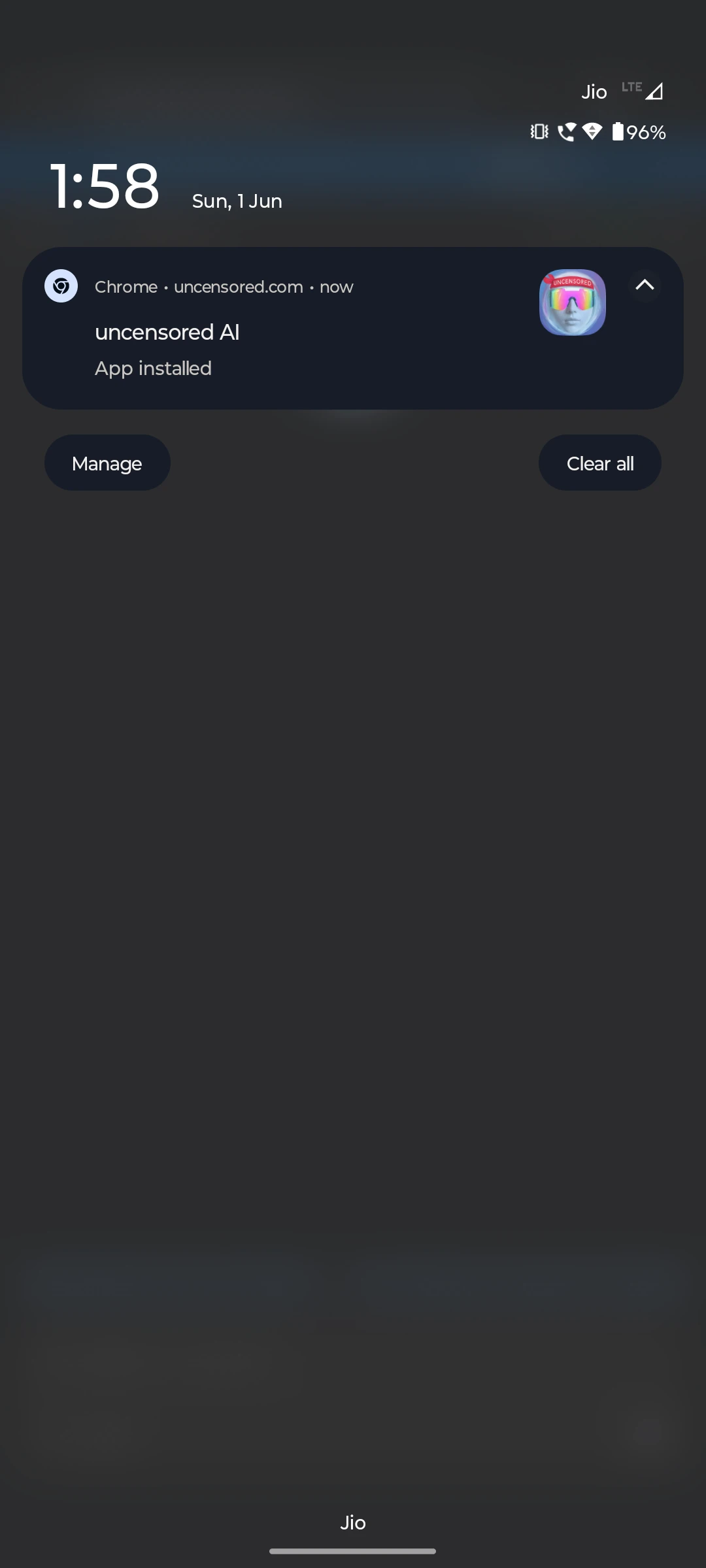
Installation complete in just a few seconds. 6 Find the icon on your Home Screen
Close Chrome or return to the Home Screen - you'll see the **Uncensored AI** app icon
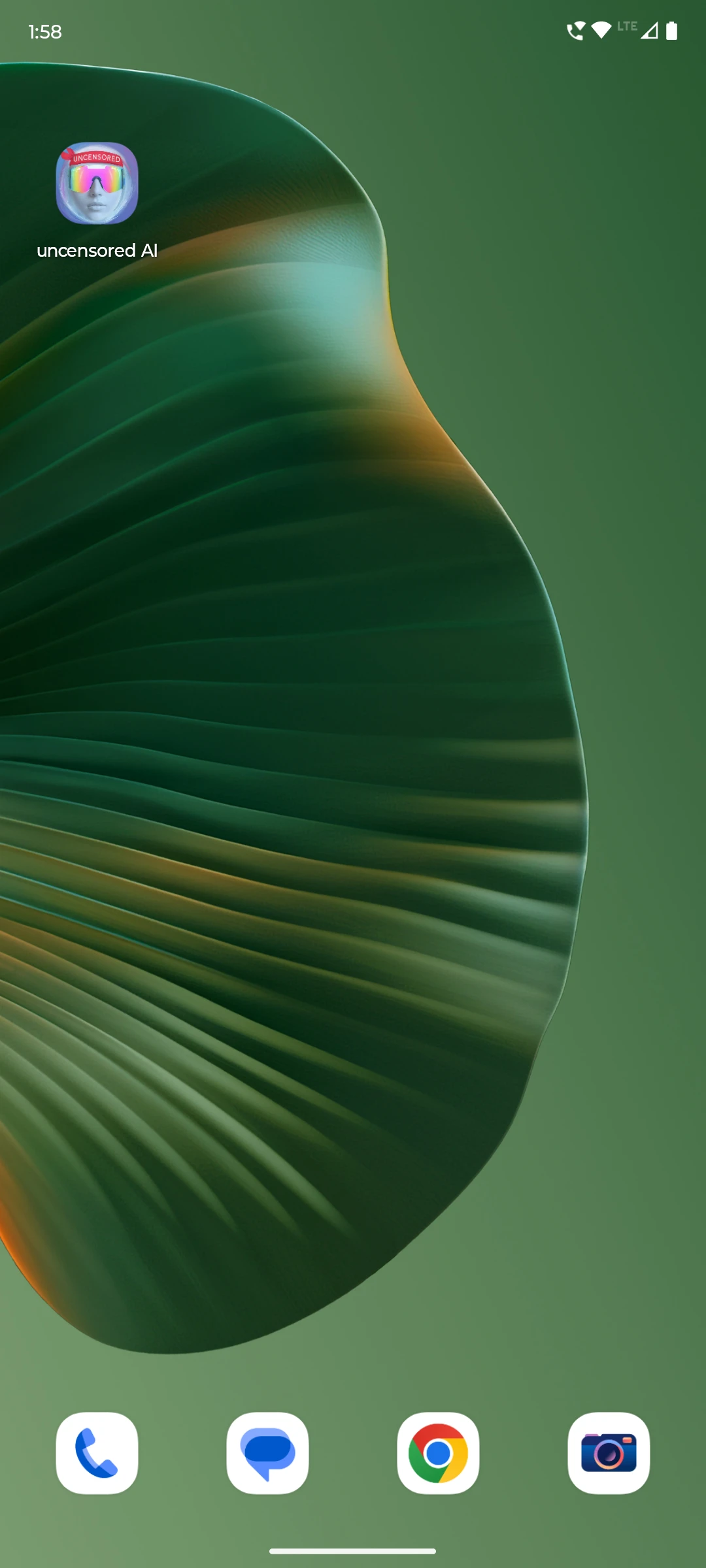
Drag it wherever you like or add it to a folder. 7 Launch and enjoy 🎉
Tap the icon once. Uncensored AI now opens in its own window—no address bar, no tabs, just the full, immersive interface.
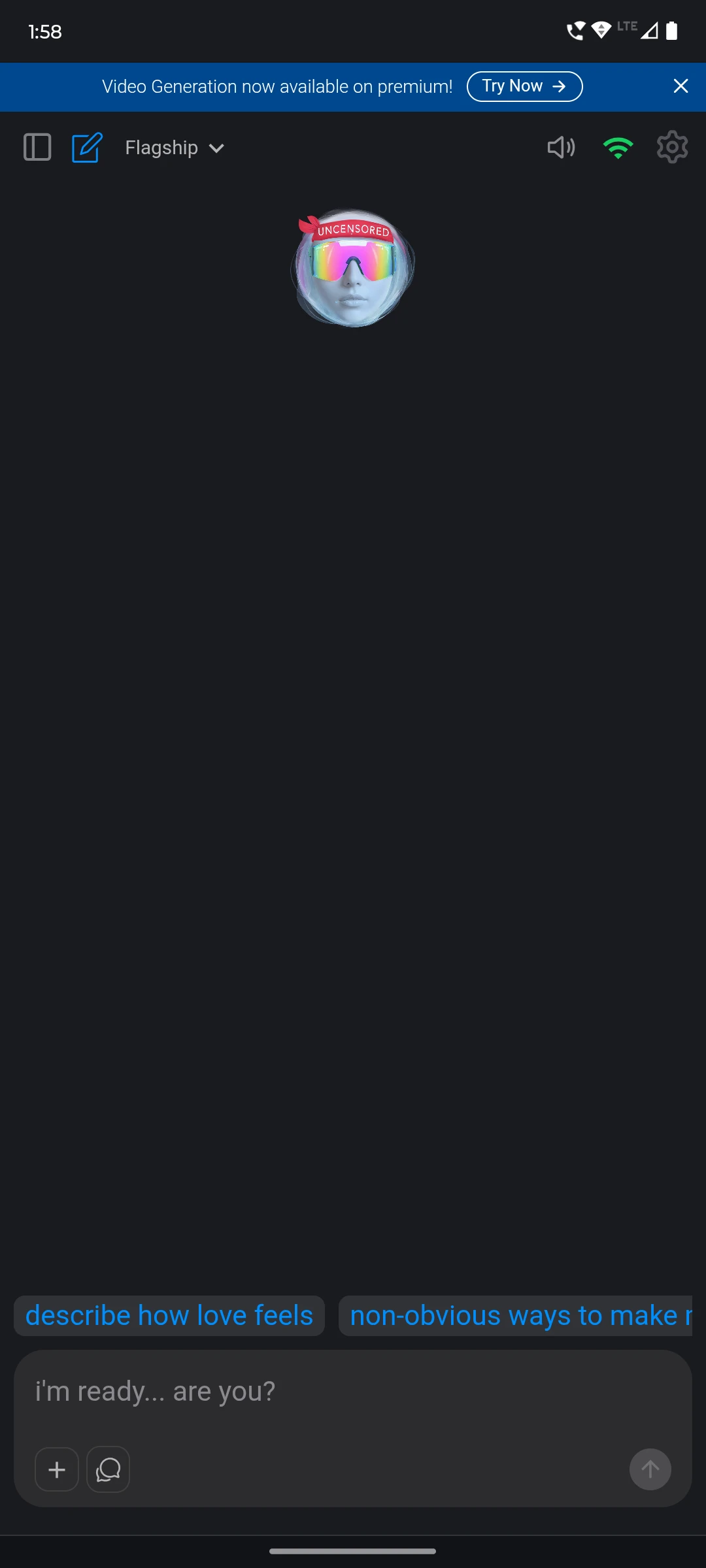
The app feels native because it *is*—courtesy of PWA tech.
Need help?
- If you see an Install App banner at the bottom of the page, tap that instead of opening the menu.
- Using Samsung Internet or Firefox? Look for a similar "Add to Home screen" option in their menus.
- Contact us at hi@uncensored.com